Set up WiConnect TV
Three steps, about 10 minutes. Pick your device below, follow the steps in order, and you'll be watching. Stuck at any point? Call or text (608) 524-1579 and a real person here will walk you through it.
Before you start
- A streaming device on your TV: a Roku, a Google TV or Android TV, or an Amazon Fire TV — or an Android phone or tablet.
- Your WiConnect account sign-in at secure.wicw.net — the email address or mobile number we have on file. There's no password: we text you a code, or email you a sign-in link.
- A phone or computer nearby for step 1 and step 3.
Rather not do it yourself? We'll come out, bring a streaming box, set up your TV and show you around — $95, box included. Call or text (608) 524-1579.
Step 1: Add WiConnect TV to your account
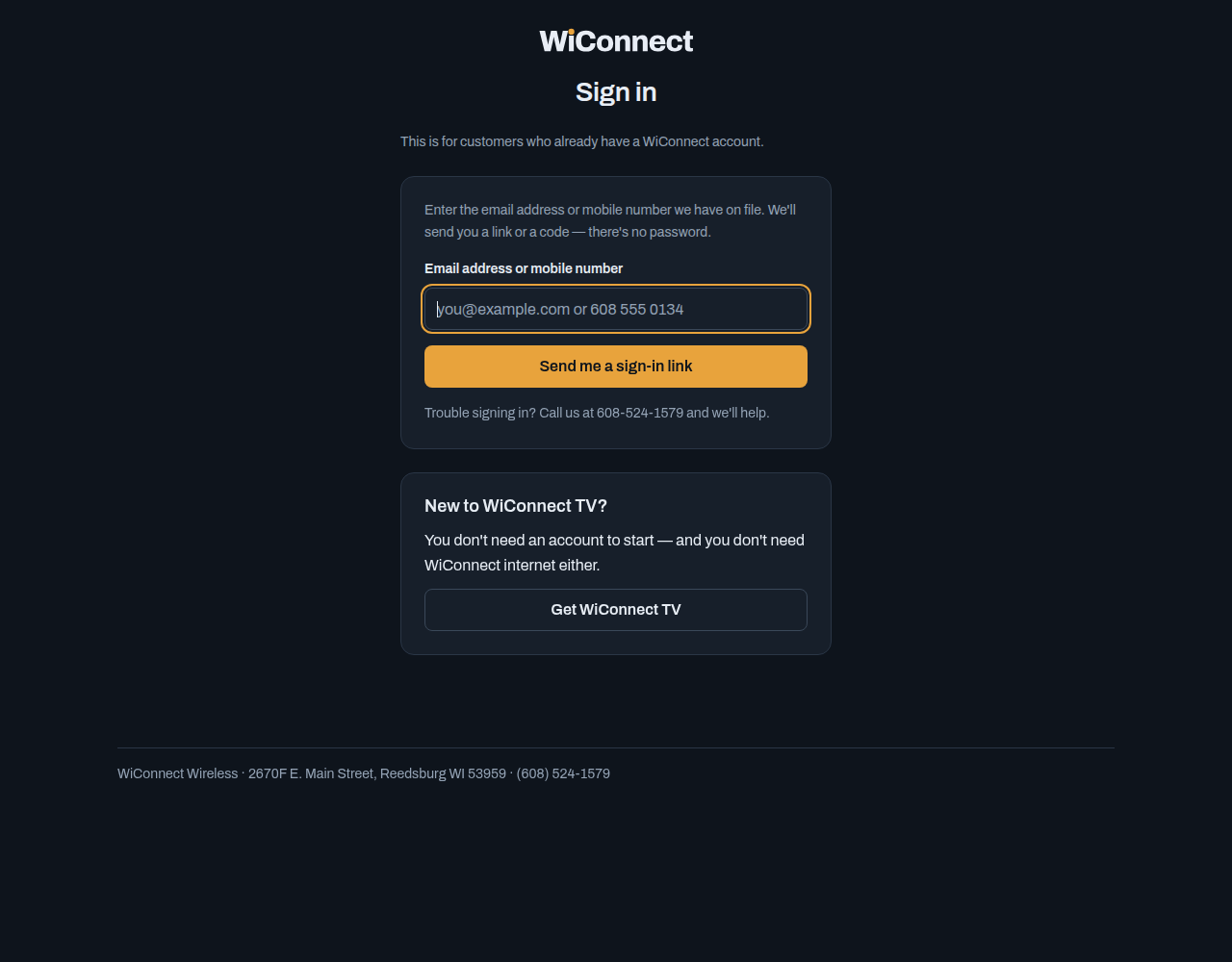
- On your phone or computer, go to secure.wicw.net and sign in with your mobile number or email address. If you used your mobile number, enter the code we text you. If you used email, open the sign-in link we email you.
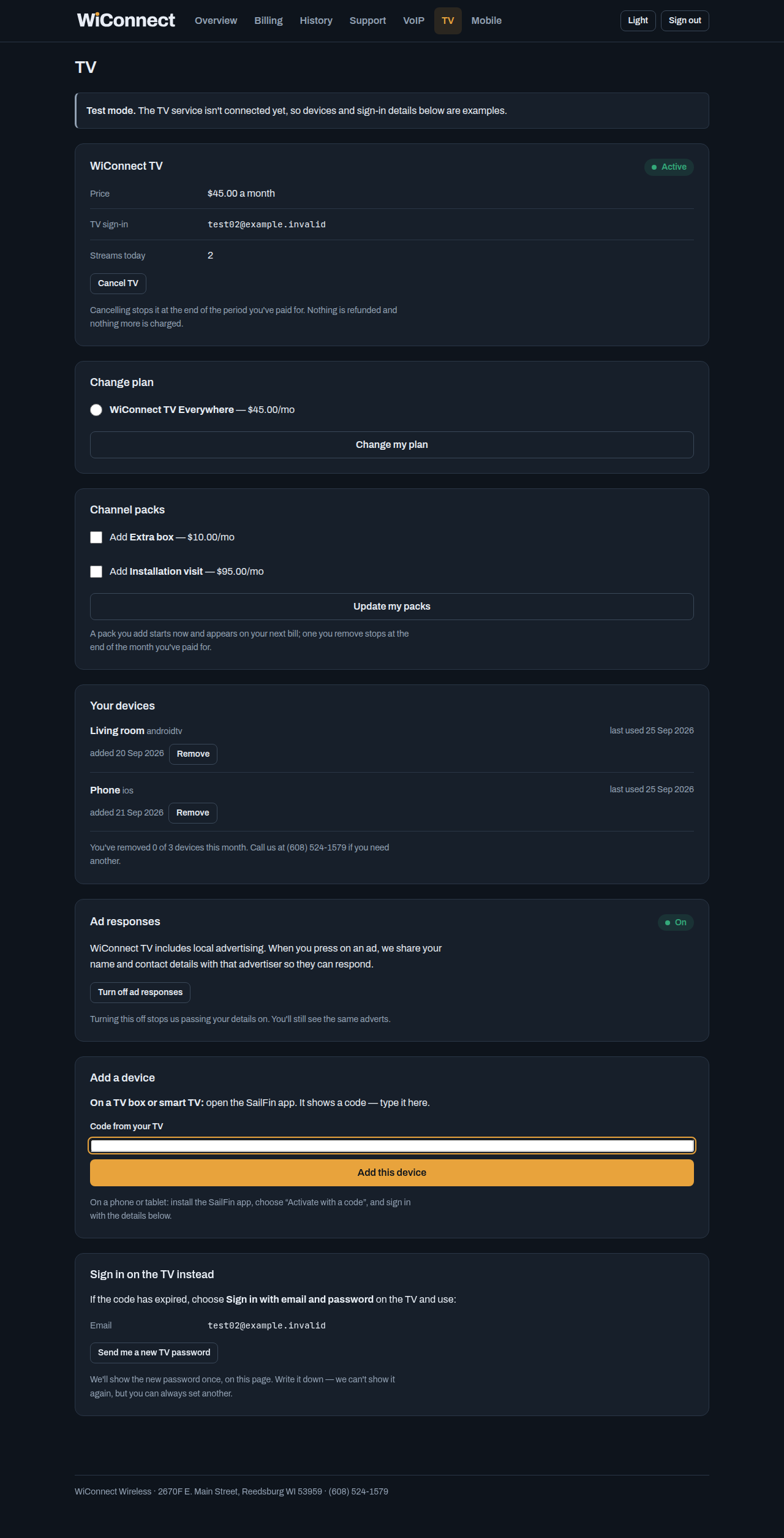
- Open the TV tab.
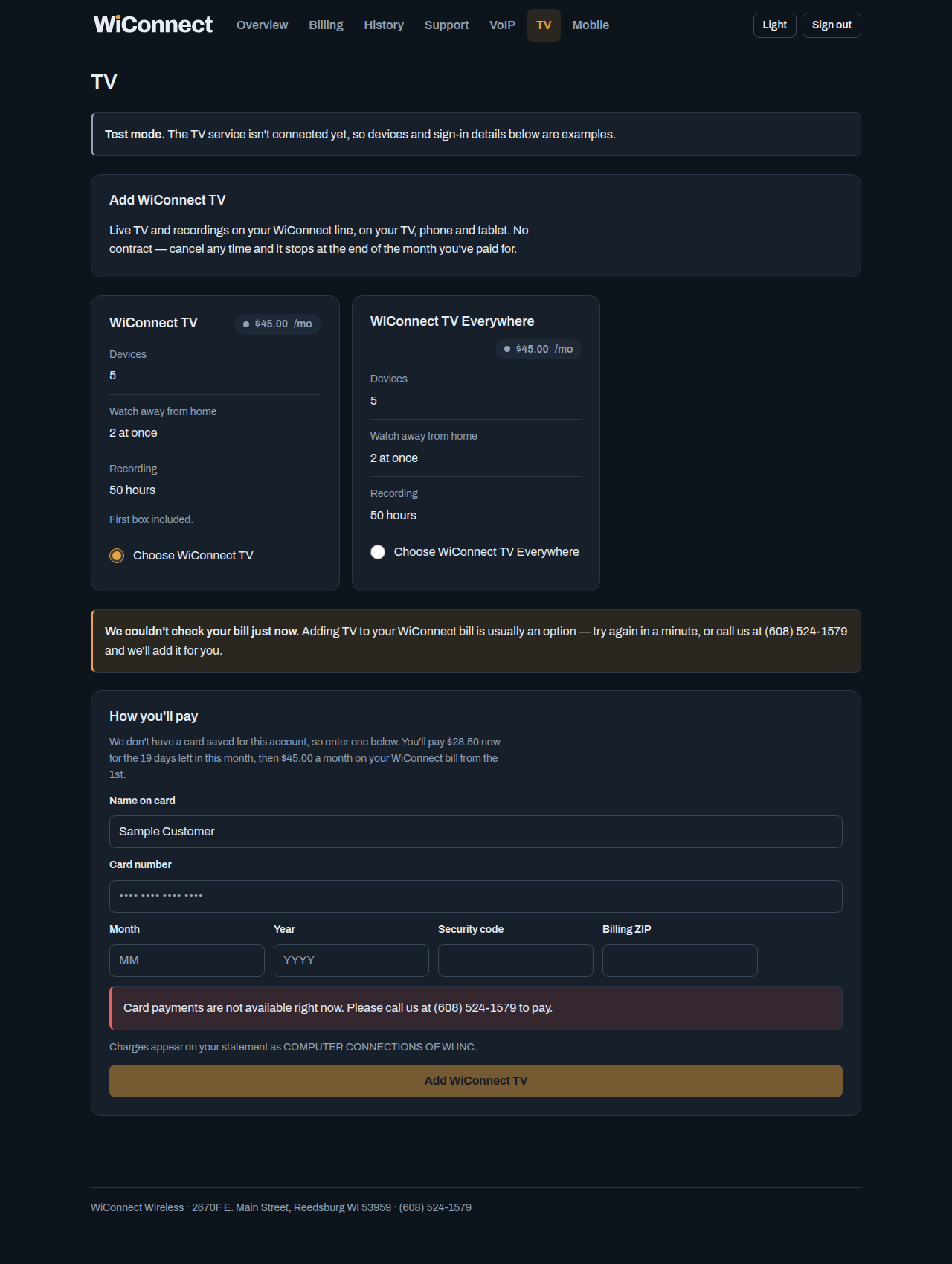
- Choose WiConnect TV and add it to your WiConnect bill.
- You'll see a confirmation on screen.
Step 2: Install the app on your device
Find your device below.
Roku
- Press Home on your Roku remote.
- Go to Search and type WiConnect TV.
- Select WiConnect TV, then Add channel.
- Open it from your home screen when it finishes, then go to step 3.

Google TV or Android TV
- On the home screen, go to Search (or Apps).
- Search for SailFin TV.
- Select SailFin TV, then Install.
- Select Open, then go to step 3.
You can also find SailFin TV on Google Play and send it to your TV from your phone or computer.

Amazon Fire TV
- On the home screen, select Find (the magnifying glass), then Search.
- Type SailFin TV.
- Select SailFin TV, then Get (or Download).
- Select Open, then go to step 3.

Android phone or tablet
- Open the Google Play Store.
- Search for SailFin TV and tap Install.
- Open the app, then go to step 3.
iPhone, iPad and Apple TV aren't available yet.

Step 3: Connect the app to your account
- Google TV, Fire TV or Android phone or tablet: on the first screen, choose WiConnect customer? Sign in here. Roku: the sign-in screen opens on its own.
- The TV shows a code and a QR code. Leave them showing.
- Easiest: point your phone's camera at the QR code, tap the link, and sign in if asked.
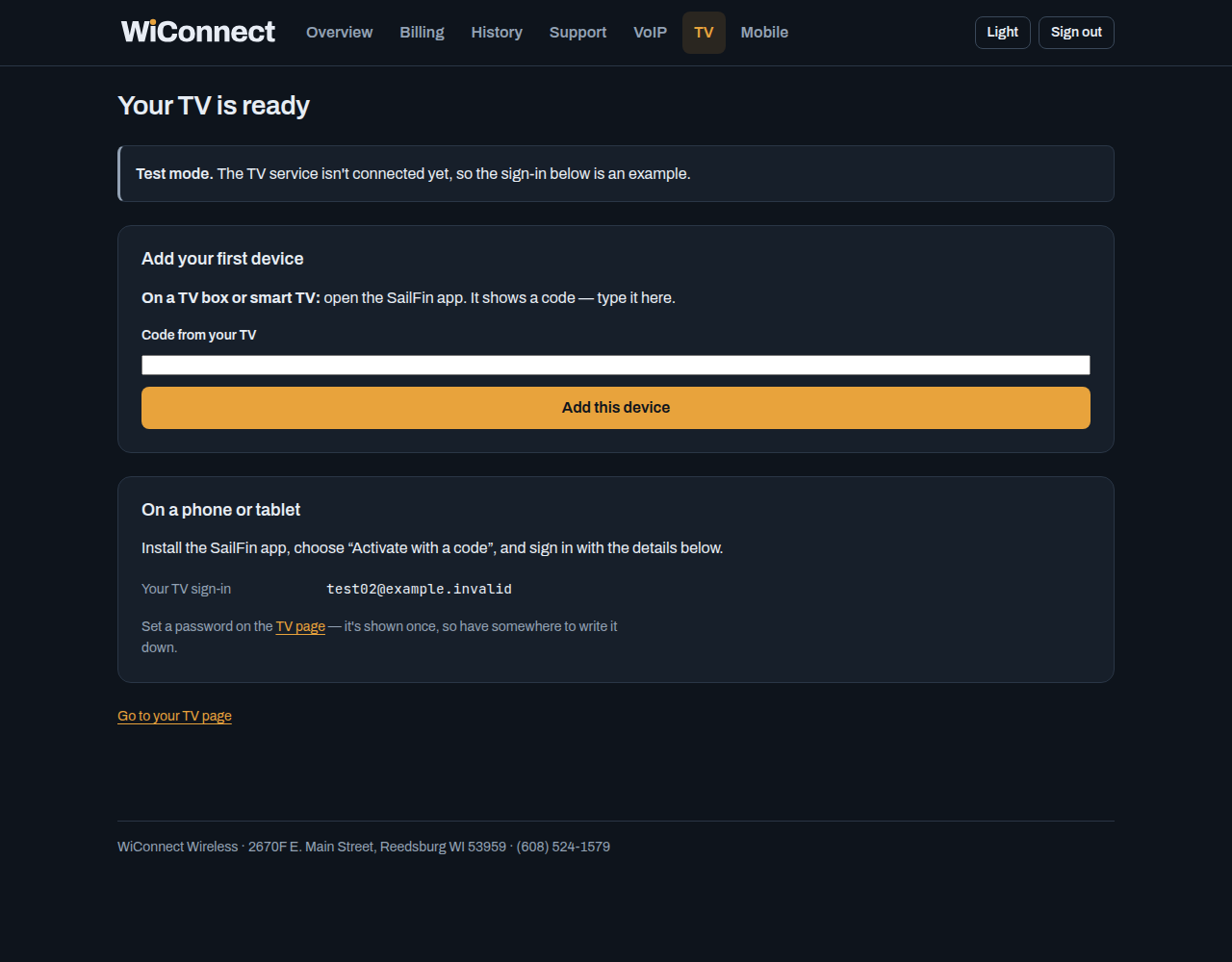
Or: on your phone or computer, sign in at secure.wicw.net, open the TV tab, and type the code into Code from your TV. - In a few seconds the app switches to WiConnect TV and you're watching.


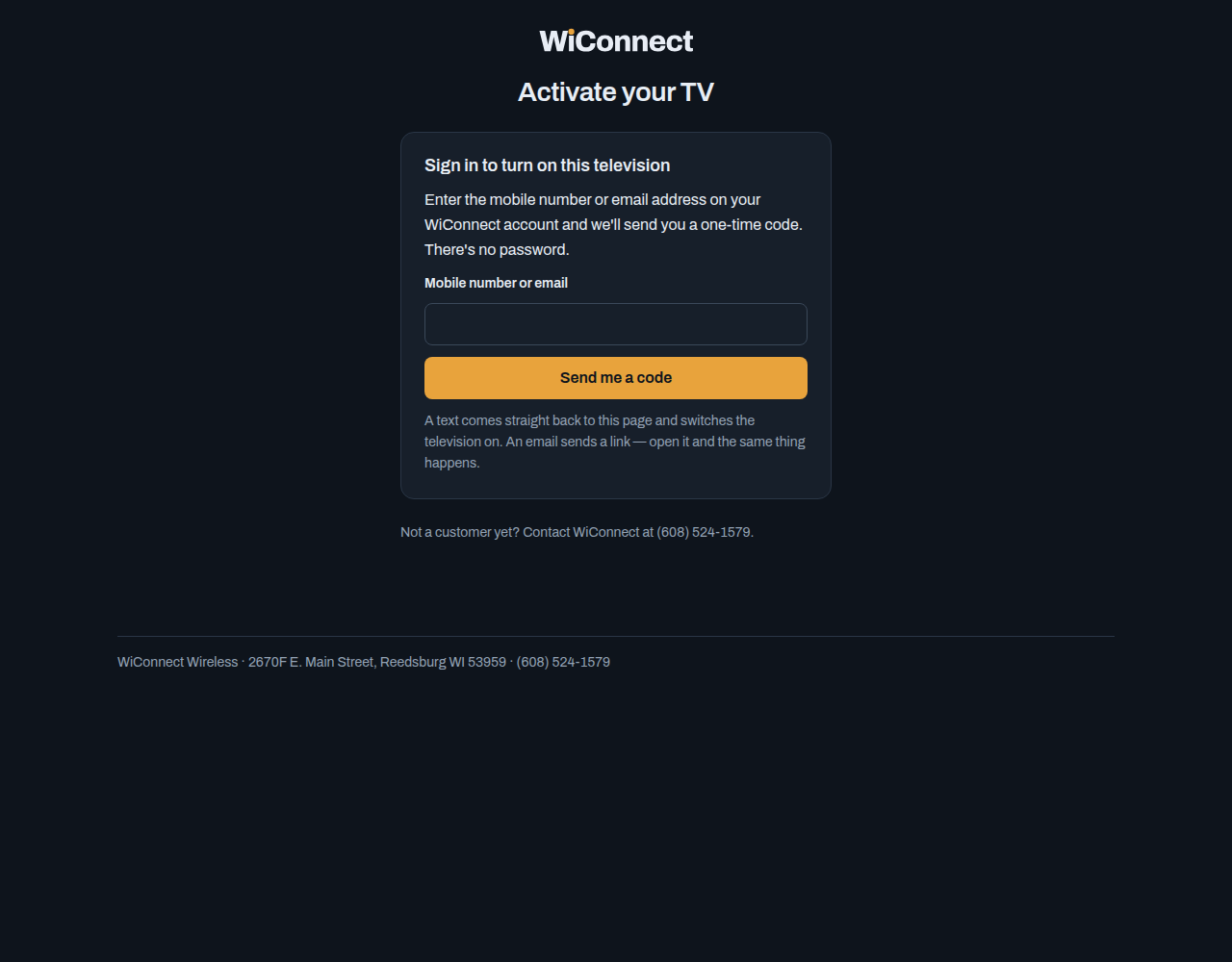

Adding another TV? Install the app on that device and repeat step 3. You can see and remove your devices in the TV tab at secure.wicw.net.
If something doesn't work
- The code didn't work or ran out of time.
- Codes only last a few minutes. Press Get a new code on the TV (or close and reopen the app), then scan or type the new code straight away.
- I can't find the app.
- On Roku, search for WiConnect TV. On Google TV, Fire TV and Android phones, search for SailFin TV.
- I can't sign in at secure.wicw.net.
- Use the mobile number or email address we have on your account. A mobile number gets a text with a code; an email address gets a sign-in link. If nothing arrives, check your spam folder, or call us and we'll update your details.
- The app says my account can't be used, or the picture won't play.
- Call or text (608) 524-1579. We can see your account and fix it while you're on the phone.